Quest on Demand Email Migration to Office365

I do not mean to sound like a Quest Sales Man , But this product from Quest truly is a super product.

It allows you to migrate email from the following sources.

Microsoft Exchange 2000/2003/2007/2010
IMAP
Lotus Notes
Microsoft Bpos
Microsoft Live@edu
Microsoft Office365
Novell Groupwise
Sun One / iPlanet
Pop
Windows Live Hotmail

You can then migrate to the following targets

Microsoft Exchange 2010/2013
Office365
Microsoft Live@edu

So why would you use this service?

A couple of reasons, It is hosted in Windows Azure and can allow for zero touch migrations.Exchange 2007 messaging platforms upwards give us the ability to implement hybrid environments which can then create a platform which will allow rich co-existence and migration.

Its a hell of a lot cheaper than the full email migration products from quest.

It can migrate from Lotus Notes!!!

I have worked on quite a few corporate companies that  acquire companies. Extracting email from a business first before an AD consolidation project makes the AD consolidation project a lot easier and a tool like this allows zero touch email extraction into a companies own on-premise exchange messaging environment or into my preferred platform Office365.

I have taken some screen shots of how easy the wizard is to begin a migration. In this example I   wanted to migrate from Exchange 2010 to Office365 wave15. So before I did that , I created an application impersonation role in the exchange 2010 on-premise environment and one in the Office365 environment.

After that we sign into the Quest On Demand Portal HERE

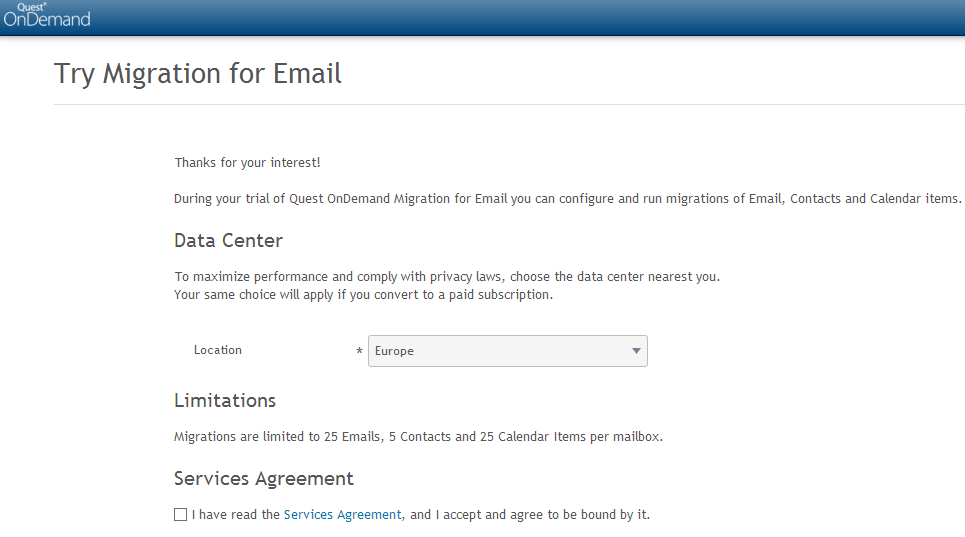
Then agree to the service’s agreement and select your data center location.

Then create a Migration Plan. There are four simple steps.

  1. Connect to the email services
  2. Import Mailboxes
  3. Choose what to migrate
  4. Migrate
On the connections tab you connect to the source exchange 2010 messaging platform and enter the credentials of an account that has the application impersonation. There is a test connection tab to verify connectivity.

Then you connect to the target , in this case Office365. You will need to add an exchange license to the office365 account in order to make it a member of the application impersonation group. Microsoft throttle the amount of data that can be migrated into Office365. So you can add multiple accounts for the target to increase migration throughput.

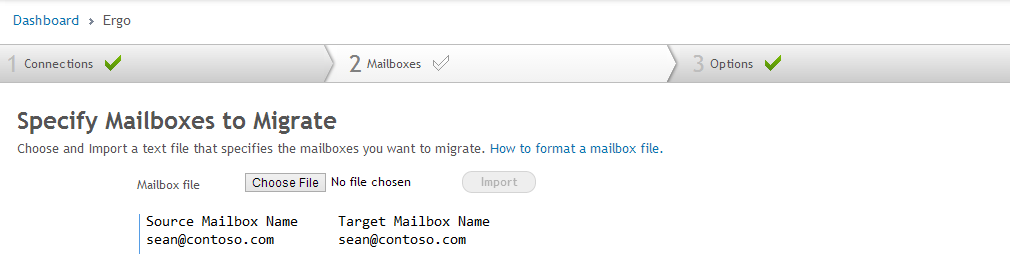
In section 2 you specify the source and target mailbox which is populated by a simple text file.
You then select what to migrate.

Finally you begin migration.

And once all the mail has been extracted from the business and when the ad consolidation project has been complete , you can refer to one of my previous blogs HERE on how to convert existing Office365 users to federated users.

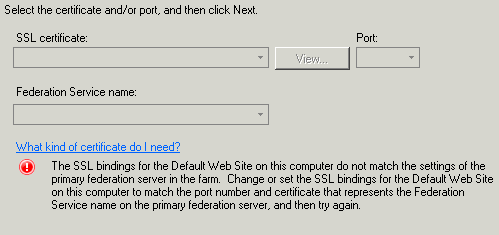
Error adding second adfs server with ucc cert

I recently tried to add a second adfs server to an adfs farm and got the error message above. I was using a ucc cert which had the adfs service name.

So to fix it you add the second server via the command line , a typical command would be as follows.

FsConfig.exe JoinFarm /PrimaryComputerName ADFS-SRV /ServiceAccount Contoso\adfsservice /ServiceAccountPassword password /CertThumbprint “ef 72 a6 78 c0 ab 4a bf 07 10 7e e4 86 f5 5e ba 2a 3c 99 6b”

And the output from the command will be as per the image below.

.

Windows Azure Active Directory Sync Tool

The windows azure active directory sync tool , has a new feature. ‘Password Synchronization

This is a really neat feature and will meet the needs of most businesses that need to synchronize identities to office365. Setting up ADFS farms is often overkill for small businesses as to do it properly you need a minimum of 4 servers. Two adfs proxy servers and Two adfs lan servers each in a  different site for redundancy and high availability.

Now with password synchronization you only need one server or can install the dirsync service onto an existing server.So how do we configure password synchronization.

  1. Create a dirsync service account and add the account to the ‘FIMSyncAdmins‘ group on the server where you plan installing the service.
  2. Create this shorcut on the desktop ‘”C:\Program Files\Windows Azure Active Directory Sync\SYNCBUS\Synchronization Service\UIShell\miisclient.exe
  3. Then as per the image below , right click on ‘Active directory Connector‘, ‘Configure Directory Partitions‘ and then ‘Containers‘ and select the OU’s that you want to synchronize.
So that is how to set up password synchronization.You need an adfs farm if you want Single Sign on, But single sign on is only for web services like 

OutlookWebApp
Sharepoint 
portal.microsoftonline.com

So if a customer is going with only exchange online then this can be setup very quickly and passwords will be synced.

Now one more thing , after you reboot the ‘Forefront Identity Manager Synchronization Service‘wont start! So how you get around this is as follows. 

  1. Create an OU and add the DirSync Server into that OU. 
  2. Add the DirSync Server to that OU.
  3. IN GPO Management , Block Inheritance on the OU.
  4. Create a group policy object as follows. Navigate to ‘Computer Configuration\Policies\Windows Settings\Security Settings\Local Policies\User Rights Assignment
  5. Located “Login as a Service” and add  the service account for the synchronization engine which could be typically ‘AAD_95a9bb5e2ba4
  6. Link the GPO to the OU prevously created and enforce the policy
  7. Logon to the DirSync server, GPUPDATE/FORCE
  8. Log off
  9. Log on 
  10. Start the service
  11. Or you could simply use gpedit.msc and edit the local policy on the machine.

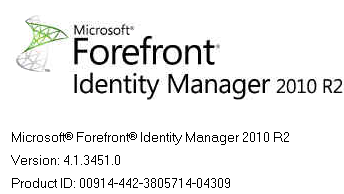
At the time of writing this post , the version of windows azure directory sync tool was Forefront Identity manager 2010 R2 Version: 4.1.3451.0


Quest NME migrations with Exchange Online Wave 15

I have done quite a few Lotus Notes to Exchange online migrations using Quest’s Notes for Exchange migration toolkit.

One of my favorite features is the admin pool. 

So what is the admin pool? The admin pool creates a pool of global administrators that can be used for migrations as Microsoft throttle the amount of data that can be migrated per user name. An example of an admin pool is displayed below.


This feature works great when migrating to a Wave 14 Exchange online tenant but not so well when migrating to a Wave 15 tenant.If you want to use an admin pool to migrate to a wave 15 you need to submit a service request to Microsoft and below is an extract with the instructions from Quest.

Microsoft has informed our Product Team that they are changing the procedure for requesting exemption to the PowerShell throttling.
Each Tenant Admin, as an Office365 customer, please submit a service request individually. Microsoft would like to receive requests directly from the Tenant Admin.
The Tenant Admin should open a service request and reference “Bemis Article: 2835021”.  The Microsoft Product Group would also need following information in the request:
1.     The tenant domain (tenant.onmicrosoft.com)
2.     The version of Exchange (These requests should all be for Wave15)
3.     The number of mailboxes that are being migrated
4.     The number of concurrent admins accounts that will be used for the migration
5.     The number of concurrent threads that will be in use
6.     The number of runSpaces will be created per minute
7.     The proposed limit (powershellMaxTenantRunspaces, powershellMaxConcurrency, etc.) and number to increase the limit to
For items 6 and 7, Tenant Admin may probably need to take the total number of threads across all migration machines that you plan to use and add a buffer because it is not easy to know in advance how the timing of the runSpaces will occur.
As a result, it may be safe to assume that  all potential runSpaces could be created within a minute, so 6 & 7 should probably both be submitted as the total number.
More Information About # 6 & 7
If there are 5 migration consoles designated for the migration and running 3 threads each, it is safe to assume that you may have 15 runSpaces created per minute.
In case of you may decide to increase threads or add migration consoles later, even it is safe to assume that you may have 15 runSpaces per minute, to provide a buffer, you may want to ask 25 or 50 (each)  powershellMaxTenantRunspaces, powershellMaxConcurrency, etc. 

Microsoft will only do this for a minimum of 1000 users that are migrating to Exchange online. 

So the way I got around it was by doing the following.In this instance there were 3 nme migration machines.

  1. Create New-ManagementRoleAssignment -Role “ApplicationImpersonation” –User admin@contoso.onmicrosoft.com
  2. Then create 3 nmeadmin accounts and assign an exchange online license to each account.
    nmeadmin1@contoso.onmicrosoft.com
    nmeadmin2@contoso.onmicrosoft.com
    nmeadmin3@contoso.onmicrosoft.com
  3. Install the Windows Azure Directory module for powershell on each nme machine which you can download HERE
  4. Create an Admin Role called Quest , add in the following roles
    Application Impersonation & Migration
    as per the image below
  5.  Add the 3 nmeadmin accounts as members to this role.
  6. Add the 3 nmeadmin accounts as members to the Organization Management – Admin Role
  7. On each of the nmeadmin machines configure an Outlook client for each of the nemadmin accounts. So one account per machine and do not enable caching.
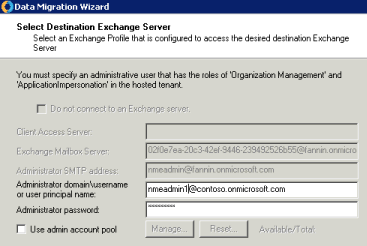
  8. So when you come to the point of migrating enter nmeadmin1 credentials into the migration wizard on machine1 , nmeadmin2 credentials on machine2 and nmeadmin3 credentials on machine 3 as per the image below.
This will then allow you to migrate from Lotus notes to Exchange online wave 15. I am sure Quest will resolve the admin pool issue as it is such a cool feature and really speeds up for migrations.

At the time of writing this post this relates to Quest NME version 4.7.0.82 displayed below.



Cloud Accelerate Partner Support

One of the benefits of being a Microsoft Cloud Accelerate Partner is that you can get dedicated  Cloud Partner Support which is available 24 Hours a day 7 days a week.

So how do you access this benefit as there is no dedicated phone number.

The way you access the Cloud Partner Support team is by logging a service request via your partner tenant. So you can log a service request through your own partner tenant for one of your customer’s tenants.

This really is an excellent service. Its like having a Microsoft Premier Support contract. I have logged a number of service requests via the Cloud Partner Support team and their response time is excellent.

HERE is a document providing an overview of the Cloud Deployment Program Overview

QUEST NME unable to create admin pool

In the image above I ran into an issue when trying to create an admin pool for on Quest Notes For Exchange migration toolkit.This was for a migration to Exchange Online.

So the first thing i did was set-executionpolicy unrestricted -force on both the x64 and x32 versions of powershell. But that didn’t fix the issue.

Most enterprises have quite a few group policies and sometimes these policies are applied before the machines have been moved to an OU that has inheritance blocked.

So to remove the group policies causing the issue. 

Browse to HKLM\Software\micrsoft\windows\currentversion\group policy and then delete any S-x-x-xx-xxxxxxxxxxxxxx keys.
Ensure you have the Windows Azure Active Directory Module for powershell installed on all the nme machines.

Once I had removed all the group policies I could create the admin pool and proceed with migrations.

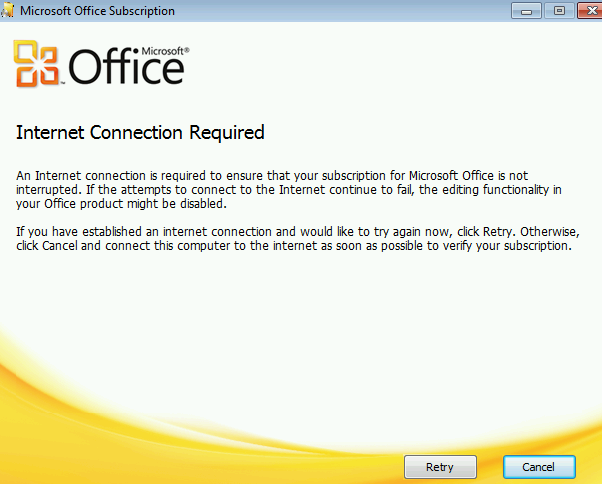
An internet connection is required to ensure that your subscription for Microsoft Office is not interrupted

I have a customer that has a new wave 15 Office365 tenant and click to run is not compatible with Windows XP. Like most corporate customers , my customer had a proxy.

So I ran the Office365 readiness assessment tool which you can download HERE 

The results of the test stated that Office365 ports could not be contacted.

The reason for this is because Office365 communicates to the service via networkservice.

Lets say my proxy was 1.1.1.1:8080 then run the following command and Office will activate fine.

bitsadmin /util /setieproxy networkservice MANUAL_PROXY 1.1.1.1:8080 “”

If you need bitsadmin for xp you can download it HERE .

Exchange Hybrid GAL not populating

As per one of my previous posts HERE on how to edit active directory attributes , When dirsync  is enabled it wont populate the GAL with exchange online and exchange on-premise.


Lets say my email address is sean@contoso.com. 

You need to populate some ad attributes.

Proxy Address: SMTP:sean@contoso.com & smtp:sean@contoso.mail.onmicrosoft.com
Target Address: SMTP:sean@contoso.mail.onmicrosoft.com
UPN:sean@contoso.com

So after those attributes have been synced via dirsync run this powershell command in the exchange management shell 

Enable-RemoteMailbox sean@contoso.com -RemoteRoutingAddress sean@contoso.mail.onmicrosoft.com

So once this is done all you need to do is apply a license and usage location to sean@contoso.com

And then the GAL will be populated between Exchange On premise and Exchange online.

An encrypted connection to your mail server is not available

I have been working on a Hybrid Exchange project recently and when I was using my own laptop on my customer’s  domain , I could connect to a test exchange online mailbox without any issues.

But any machine on their network could not connect via autodiscover to an exchange online mailbox.So a couple of points to note.

When running an exchange hybrid the ‘autodiscover.contoso.com‘ will point at your hybrid servers and when the outlook client hits the hybrid server the client will be directed to the correct mailbox location by the hybrid server.

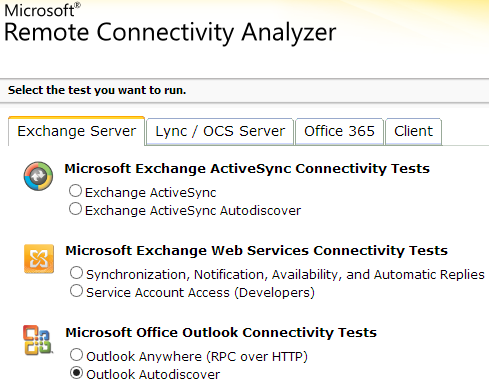
So our good friend the Exchange Remote Connectivity Analyzer can perform a test on both an on prem exchange mailbox and an office365 mailbox and when the outlook client hits the https://autodiscover.contoso.com/autodiscover/autodiscover.xml the outlook client gets routed to the correct mailbox. But in the case of an exchange online mailbox , http redirection occurs until it reaches the exchange online autodiscover.xml which for example could be https://autodisocver.contoso.mail.onmicrosoft.com/autodiscover/autodiscover.xml

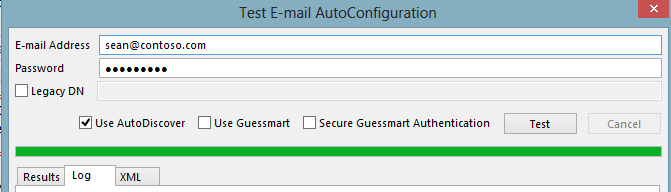
Another test we can do is by running the ‘Test Email AutoConfiguration’ tool in Outlook as per the image below. There are quite a few re-directs until outlook finds the correct exchange online mailbox.
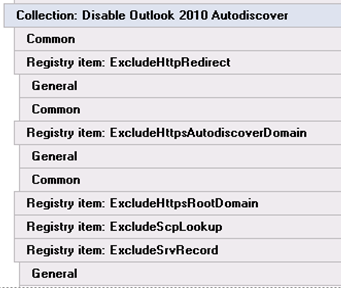
So in my particular scenario my Outlook could connect fine but domain joined laptops could not and this was because of a group policy which is displayed below which was blocking the http redirects required to connect to the exchange online mailbox.
So how to fix this , well firstly remove the group policy and secondly you can edit 4 registry settings as follows and as per the image below in hkey_current_user\software\microsoft\office\14.0\outlook\autodiscover

ExcludeHttpRedirect 0
ExcludeHttpsAutoDiscoverDomain 0
ExcludeHttpsRootDomain 0
ExcludeSrvRecord 0

So now all your Outlook clients in Hybrid mode will be able to connect via autodiscover.


Exchange Hybrid Mailbox Migrations slow when using TMG

When using Exchange online in Hybrid mode , if you want to have a unified global address list with exchange online users and onpremise users then you need to create on premise blank mailboxes for the users that you want to use exchange online and then create ‘remote move requests‘ to move the onpremise mailboxes to exchange online.

During the move request , if you open the log you may see ‘Relinquishing job because the mailbox is locked

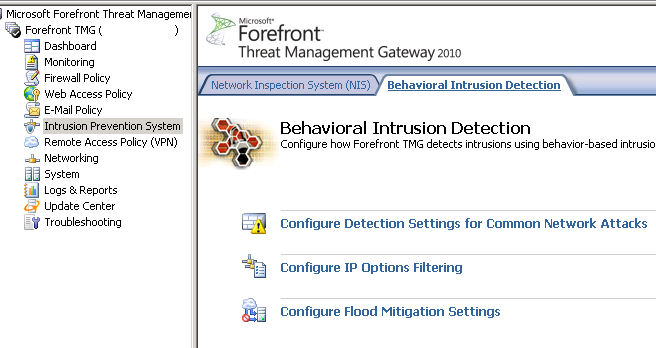
So in order to fix this and really speed up the remote move requests we need to go to the intrusion prevention section of TMG and then the Behavioral Detection\Configure Flood Mitifgation Settings as per the image below.

We click on the link for Configure Flood Mitigation Settings and then click on ‘IP Exceptions‘ and create a new computer set. In the image below I called it ‘Exchange Online Protection‘ and add a computer set with the exchange online protection range as per the image below

All of the Exchange Online Protection IP ranges can be found at this SITE 

You can susbscribe via RSS feed HERE to the Microsoft Online IP Ranges 

So now Remote move requests will migrate a lot quicker 🙂