Category Archives: Office 365 Grid
Google Apps – Office365 equivalent services
Bulk activation of users in Office365
I recently had to activate 2000 Exchange Online P1 users and 100 Office365 E4 Users.
So how can we do this quickly?
Powershell to the rescue.
Ensure that the Windows Azure Active Directory Module for Windows PowerShell is installed. Launch the module and run the following commands.You can download the module HERE
I need a CSV file for Exchange Online Plan 1 users and Office365 E4 users. To do this I run the following powershell commands to export all unlicensed users to a csv file.
Get-MsolUser -all | where {$_.isLicensed -eq $false} | select-object userprincipalname | out-file c:\users.csv
I can then review the contents of this csv file and create two csv files.
Exchange Online Plan 1 users : p1.csv
Office365 E4 users : e4.csv
Connect-MsolService (Enter Global Administrator credentials)
Get-MsolAccountSku (Take note of the account skus)
Assign a usage location to each set of users with the following powershell commands. The usage location in this example is Ireland IE
Import-Csv -Path c:\P1.CSV | foreach {set-MsolUser -UserPrincipalName $_.UPN -UsageLocation IE}
Import-Csv -Path c:\E4.CSV | foreach {set-MsolUser -UserPrincipalName $_.UPN -UsageLocation IE}
Then assign a license to each set of users.
Import-Csv -Path c:\P1.CSV| Set-MsolUserLicense -UserPrincipalName {$_.’UPN’} –AddLicenses “Contoso:EXCHANGESTANDARD”
Import-Csv -Path c:\E4.CSV| Set-MsolUserLicense -UserPrincipalName {$_.’UPN’} –AddLicenses “Contoso:ENTERPRISEWITHSCAL”
And there we go all users activated.
Exchange 2003 – Exchange Online Co-Existence
A customer recently asked me how do we enable co – existence between Exchange 2003 and Exchange Online wave 15. The upgrade path from 2003 to 2013 on premise or Exchange online can take a few too may steps. So as per my previous blog posting , I have chosen Quest On Demand as my migration tool of choice for moving customers to Exchange Online.
A cut over migration using the Exchange Online native migration tools is often not practical for enterprise customers , simply because of the volume of data , amount of users , bandwidth.
So Quest on Demand comes to the rescue.
In this example I will using contoso.com as the external email domain and will not be using windows azure directory sync and will describe in sequence the steps required for co-existence.
- Add contoso.com to the domains section in your exchange online tenant , verify ownership of the domain and then set the domain usage to use exchange online.
- On the exchange 2003 server, browse to exchange system manager , expand mailboxes and then in the actions menu , export to list. This will export a list as a text file which you can then open in Excel. I normally then present this excel file to my customer and ask them to remove users that do not require migration. Once that has been done , we have our user list for migration.
- The next step is to bulk create exchange online external contacts. The method for creating exchange online contacts is described HERE in an Office365 Wiki Page. We will use the user list that was exported from exchange 2003 to populate the csv for external contacts. I normally create contacts for all existing mail users.
- We then Create an Outbound Connector for Contoso.com with the following configuration.
Name: Contoso.com
Connection Type: on premise
Retain Service Headers on Transmission: True
Connection Security: Opportunistic TLS
Outbound Delivery: Route mail through smart host
(add in the name of the mx record value for contoso.com)
Domains: Contoso.com - * Lets say we were migrating 50 users per evening.
- We would delete the external contacts for the users that we want to migrate and run the following commands in the windows azure active directory module for powershell Get-MsolUser –ReturnDeletedUsers | Remove-MsolUser –RemoveFromRecycleBin -force
- We would then create the users in Exchange Online via the sample user csv and populate the csv with the user details we obtained from exporting user details from exchange online.
- We would then set the usage location with the following command in the windows azure active directory module for powershell
Get-MsolUser -UnlicensedUsersOnly |Set-MsolUser -UsageLocation IE - We would then assign a license to the users we created in the windows azure active directory module for powershell.
Get-MsolUser -UnlicensedUsersOnly | Set-MsolUserLicense -AddLicenses “Contoso”:EXCHANGESTANDARD - Now we are ready to use Quest On Demand. We use the same user names that we just created to create the Quest On Demand migration text file.
- Quest on Demand will also allow us to set the forwarding per user. The on premise user’s mailboxes will forward mail to each user@contoso.onmicrosoft.com. When email arrives at the Exchange 2003 server , if the user is an exchange online user then then mail is forwarded to the user’s proxy address.
- Lastly add : spf.protection.outlook.com to your existing SPF record.
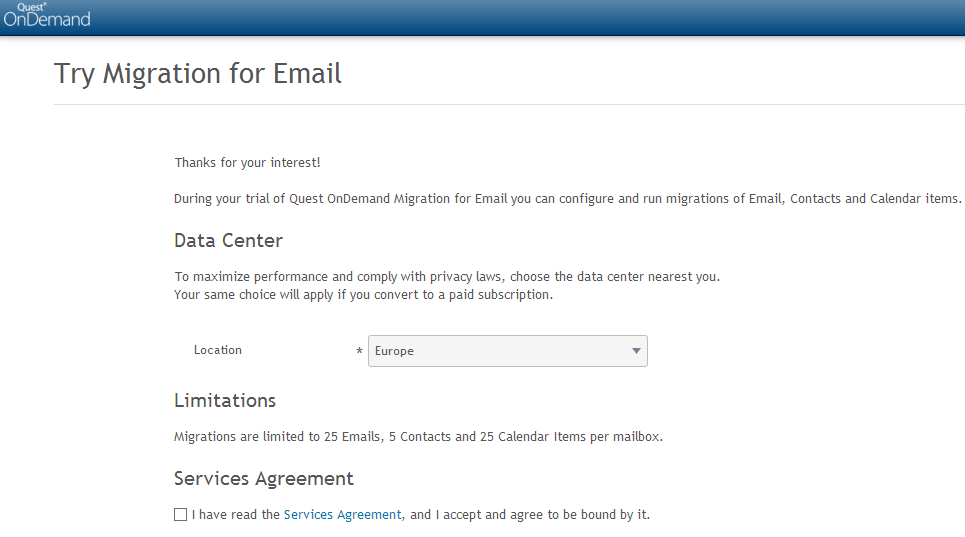
Quest on Demand Email Migration to Office365
You can then migrate to the following targets
Microsoft Exchange 2010/2013
Office365
Microsoft Live@edu
So why would you use this service?
A couple of reasons, It is hosted in Windows Azure and can allow for zero touch migrations.Exchange 2007 messaging platforms upwards give us the ability to implement hybrid environments which can then create a platform which will allow rich co-existence and migration.
Its a hell of a lot cheaper than the full email migration products from quest.
It can migrate from Lotus Notes!!!
I have worked on quite a few corporate companies that acquire companies. Extracting email from a business first before an AD consolidation project makes the AD consolidation project a lot easier and a tool like this allows zero touch email extraction into a companies own on-premise exchange messaging environment or into my preferred platform Office365.
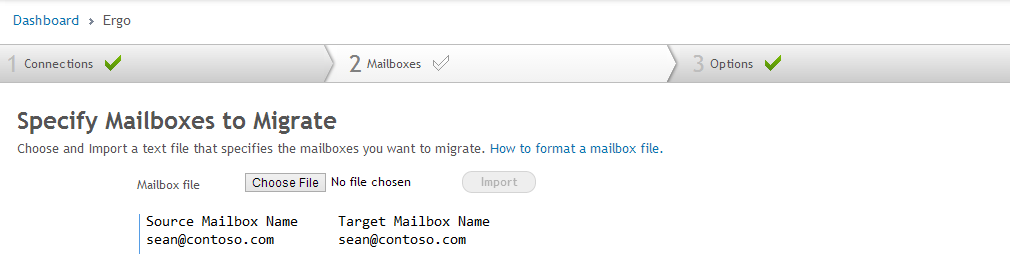
I have taken some screen shots of how easy the wizard is to begin a migration. In this example I wanted to migrate from Exchange 2010 to Office365 wave15. So before I did that , I created an application impersonation role in the exchange 2010 on-premise environment and one in the Office365 environment.
- Connect to the email services
- Import Mailboxes
- Choose what to migrate
- Migrate
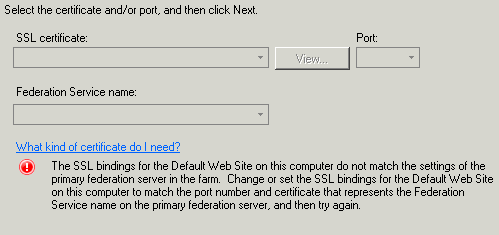
Error adding second adfs server with ucc cert
Windows Azure Active Directory Sync Tool
The windows azure active directory sync tool , has a new feature. ‘Password Synchronization‘
This is a really neat feature and will meet the needs of most businesses that need to synchronize identities to office365. Setting up ADFS farms is often overkill for small businesses as to do it properly you need a minimum of 4 servers. Two adfs proxy servers and Two adfs lan servers each in a different site for redundancy and high availability.
Now with password synchronization you only need one server or can install the dirsync service onto an existing server.So how do we configure password synchronization.
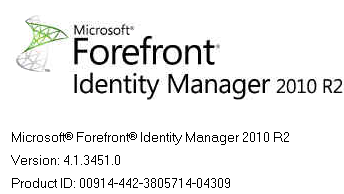
- Create a dirsync service account and add the account to the ‘FIMSyncAdmins‘ group on the server where you plan installing the service.
- Create this shorcut on the desktop ‘”C:\Program Files\Windows Azure Active Directory Sync\SYNCBUS\Synchronization Service\UIShell\miisclient.exe“
- Then as per the image below , right click on ‘Active directory Connector‘, ‘Configure Directory Partitions‘ and then ‘Containers‘ and select the OU’s that you want to synchronize.
- Create an OU and add the DirSync Server into that OU.
- Add the DirSync Server to that OU.
- IN GPO Management , Block Inheritance on the OU.
- Create a group policy object as follows. Navigate to ‘Computer Configuration\Policies\Windows Settings\Security Settings\Local Policies\User Rights Assignment‘
- Located “Login as a Service” and add the service account for the synchronization engine which could be typically ‘AAD_95a9bb5e2ba4‘
- Link the GPO to the OU prevously created and enforce the policy
- Logon to the DirSync server, GPUPDATE/FORCE
- Log off
- Log on
- Start the service
- Or you could simply use gpedit.msc and edit the local policy on the machine.
Quest NME migrations with Exchange Online Wave 15
I have done quite a few Lotus Notes to Exchange online migrations using Quest’s Notes for Exchange migration toolkit.
One of my favorite features is the admin pool.
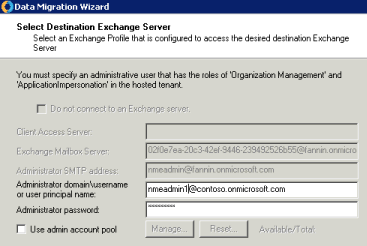
So what is the admin pool? The admin pool creates a pool of global administrators that can be used for migrations as Microsoft throttle the amount of data that can be migrated per user name. An example of an admin pool is displayed below.
- Create New-ManagementRoleAssignment -Role “ApplicationImpersonation” –User admin@contoso.onmicrosoft.com
- Then create 3 nmeadmin accounts and assign an exchange online license to each account.
nmeadmin1@contoso.onmicrosoft.com
nmeadmin2@contoso.onmicrosoft.com
nmeadmin3@contoso.onmicrosoft.com - Install the Windows Azure Directory module for powershell on each nme machine which you can download HERE
- Create an Admin Role called Quest , add in the following roles
Application Impersonation & Migration as per the image below
- Add the 3 nmeadmin accounts as members to this role.
- Add the 3 nmeadmin accounts as members to the Organization Management – Admin Role
- On each of the nmeadmin machines configure an Outlook client for each of the nemadmin accounts. So one account per machine and do not enable caching.
- So when you come to the point of migrating enter nmeadmin1 credentials into the migration wizard on machine1 , nmeadmin2 credentials on machine2 and nmeadmin3 credentials on machine 3 as per the image below.