Unknown's avatar

About Sean O'Farrell

Behind the scenes of this blog is me, Seán O'Farrell. I am the principal Microsoft security architect in eir evo, in Dublin, Ireland. My blog posts are completely my own views & provide no warranty. My blog posts are in no way affiliated with my current employer, Microsoft, Quest or any vendor’s technologies mentioned in my blog. Focused on all Microsoft security products and services specifically Defender * and Purview.

Office365 Desktop Readiness & Server Patches/Utilities


Microsoft Office365 sign in assistant 

Microsoft Office 2013 Service Pack 1 x86

Microsoft Office 2013 Service Pack 1 x64

Microsoft Office 2010 Service Pack 2 x86

Microsoft Office 2010 Service Pack 2 x64

Microsoft Outlook 2010 SP2 February 2014 Cumulative Update

Microsoft Office 2007 Service Pack 3 x86

Microsoft Office 2007 Service Pack 3 x64

Microsoft Outlook 2007  Patch KB2596598

Microsoft Outlook 2007 Patch KB268704

Azure RMS Sharing Application

Lync2013 April 2014 Cumulative Update

Microsoft Exchange Server 2010 Service Pack 3

Microsoft Exchange Server 2010 Service Pack 3 Rollup 5

Windows Azure Active Directory Sync tool – 64 bit

IdFix DirSync Error Remediation Tool

Windows Azure Active Directory Module for Windows PowerShell (32-bit version)

Windows Azure Active Directory Module for Windows PowerShell (64-bit version) 

Windows Azure AD Rights Management Administration Tool

SharePoint Online Management Shell

Windows PowerShell Module for Lync Online

Microsoft Exchange Server 2013 Service Pack 1 (SP1)

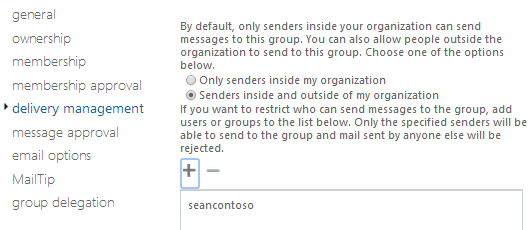
Exchange Online Distribution Group Delivery Management

I recently carried out a large migration and my customer had 700 Distribution Groups. My customer asked me to restrict delivery of emails to the groups by members only. So end users could not email the distribution group unless they were a member. 

So how do I do this for 700 users!! Powershell to the rescue.

Connect to Exchange Online via Powershell and run this command.

  1. Get-Distributiongroup | export-csv C:\users\disti.csv
  2. I then deleted all columns in the csv except for PrimarySmtpAddress and then renamed that column to distiname.
  3. Then run this command
    Import-Csv “C:\Users\sofarrell\Desktop\disti.csv” | Foreach-Object{get-distributiongroup $_.distiName | Set-distributiongroup -AcceptMessagesOnlyFromDLMembers $_.distiname}
  4. And then run this command
    Import-Csv “C:\Users\sofarrell\Desktop\disti.csv” | Foreach-Object{get-distributiongroup $_.distiName | Set-distributiongroup -AcceptMessagesOnlyFromSendersOrMembers $_.distiname}
Job done , Happy Customer.


Exchange Online Mailbox only has 25gb Storage Quota

Some of my customers mailboxes were still displaying 25gb as their mailbox storage quota size instead of 50gb. 


So the fix is quite simple.

Firstly connect to Exchange Online via Powershell.

1. Set-ExecutionPolicy unrestricted 

2. $LiveCred = Get-Credential 

3. $Session = New-PSSession -ConfigurationName Microsoft.Exchange -ConnectionUri https://ps.outlook.com/powershell/ -Credential $LiveCred -Authentication Basic -AllowRedirection 
4. Import-PSSession $Session
Then run the following CMDlet which will increase the size to 50gb for all user mailboxes:
Get-mailbox -resultsize unlimited | Set-Mailbox -ProhibitSendReceiveQuota 50GB -ProhibitSendQuota 49.75GB -IssueWarningQuota 49.5GB

Google Apps – Office365 email co-existence

I recently migrated a large Google Apps tenant to Microsoft Office365 (10k + users). Google require a verification code to set up forwarding to a user’s .onmicrosoft.com alias. Which means it is not possible to automate the forwarding from Google Apps to Office365.

So the way we enable co-existence is as follows.

Domain Name : Contoso.com 

  1. Add an alias domain into Google Apps. Relay.contoso.com. Google state that this can take up to 24 hours. I have seen it complete in 10 hours. This will add an alias to all Google Apps users  user@relay.contoso.com
  2. Export all Office365 user’s userprincipal names to a csv.
     
  3. Enable forwarding for all users in Office365 to their smtpaddress@relay.contoso.com. This is done by using the following powershell command in Exchange Online.
    Import-Csv “C:\Users\sofarrell\Desktop\RelayAddress.csv” | Foreach-Object{Get-Mailbox $_.DisplayName | Set-Mailbox -ForwardingSMTPAddress $_.MailAddress -DeliverToMailboxAndForward $true} -verbose
  4. When the last mailbox has migrated we then remove the forwarding and edit the delivertomailboxandforward value.
    Get-Mailbox | Set-Mailbox -ForwardingSmtpAddress $null -delivertomailboxandforward $false

PST Capture – no mailboxes found for exchange online

PST Capture 2.0 is a great tool from Microsoft and works really well when migrating PST files into Exchange Online. I recently had a problem when trying to select destination mailboxes , The solution is really simple. You need to get your tenant server name and you can do this by browsing to http://www.outlook.com/contoso.com and taking note of the server name and then entering it in the Exchange Online settings in PST capture as per the image below.


You can download PST Capture 2.0 HERE
PST capture requires Outlook 2010 x64
You can download Office 2010 x64 Service Pack 2 HERE
October 2013 Cumulative updates for Outlook 2010 can be downloaded HERE
Office365 Single Signin Assistant can be downloaded HERE

Bulk activation of users in Office365

I recently had to activate 2000 Exchange Online P1 users and 100 Office365 E4 Users.

So how can we do this quickly?

Powershell to the rescue.

Ensure that the Windows Azure Active Directory Module for Windows PowerShell is installed. Launch the module and run the following commands.You can download the module HERE

I need a CSV file for Exchange Online Plan 1 users and Office365 E4 users. To do this I run the following powershell commands to export all unlicensed users to a csv file.

Get-MsolUser -all | where {$_.isLicensed -eq $false} | select-object userprincipalname | out-file c:\users.csv

I can then review the contents of this csv file and create two csv files.

Exchange Online Plan 1 users : p1.csv
Office365 E4 users : e4.csv

Connect-MsolService (Enter Global Administrator credentials)
Get-MsolAccountSku (Take note of the account skus)

Assign a usage location to each set of users with the following powershell commands. The usage location in this example is Ireland IE

Import-Csv -Path c:\P1.CSV | foreach {set-MsolUser -UserPrincipalName $_.UPN -UsageLocation IE} 

Import-Csv -Path c:\E4.CSV | foreach {set-MsolUser -UserPrincipalName $_.UPN -UsageLocation IE} 

Then assign a license to each set of users.

Import-Csv -Path c:\P1.CSV| Set-MsolUserLicense -UserPrincipalName {$_.’UPN’} –AddLicenses “Contoso:EXCHANGESTANDARD” 

Import-Csv -Path c:\E4.CSV| Set-MsolUserLicense -UserPrincipalName {$_.’UPN’} –AddLicenses “Contoso:ENTERPRISEWITHSCAL” 

And there we go all users activated.