Transitioning to Outlook Mobile

I always recommend the Outlook mobile client to my customers as this application can be included in an Intune app configuration & protection policy to protect and encrypt corporate data.

One of the features that the native IOS & Android mail client provides to end users is the illusion that the global address list of the organisation that they work for is in their native contacts. So when an end user searches for users in their company they expect to get the contact information instantly. Users must use Outlook Mobile.

End users mostly complain about loosing this feature but the argument is security comes first and Outlook Mobile is more secure!  It is very difficult to find the balance between security and productivity.

Android Outlook Mobile Cheat Sheet
IOS Outlook Mobile Cheat Sheet
Deploying Outlook for iOS and Android app configuration settings

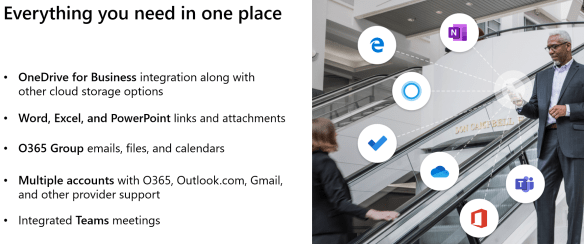
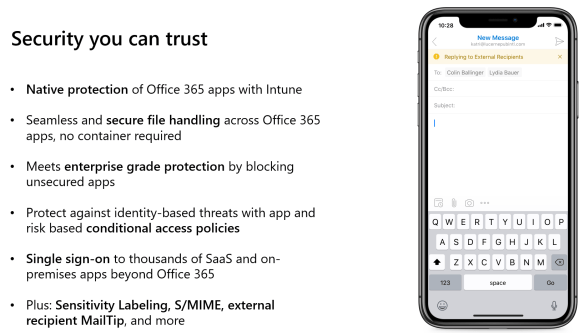
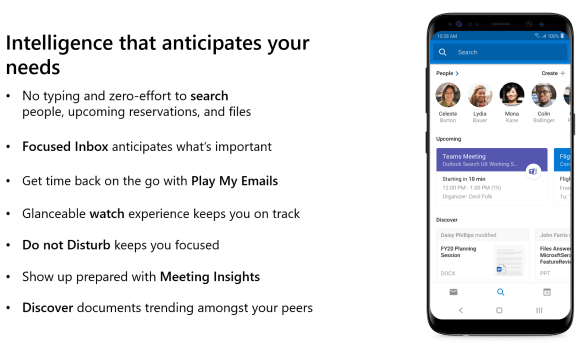
Why use Outlook Mobile?

Content via Ignite 2019 Slide Deck

  • Consistent new features and security patches from Microsoft
  • In BYOB scenario , Corporate email profiles are encrypted via Intune App Protection policy
  • Azure Information Protection integration
  • Sensitivity Labels
  • Add a share mailbox to Outlook Mobile


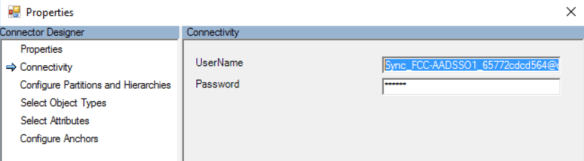
Azure AD Connect 1.4.38.0 authentication error

I started to notice that Azure AD connect was failing and had a look in the console and seen the error message in the console displayed in the image below

Then when I tried to run the command Start-ADSyncSyncCycle -PolicyType delta ,  I received a long list of authentication errors.

To resolved the issue browse into properties of the Azure Active Directory account and copy the account name onto the clipboard.

Next add this account in as an excluded account from conditional access policies the same way a break glass cloud identity admin account would be excluded from conditional access policies.

As soon as the sync account has been added to the exclusions , syncs will resume

Maintaining Exchange on-premise storage during migrations

Now that Microsoft have announced that Exchange 2010 support will end in October 2020 a lot of organisations are moving to Exchange 2016, 2019 or hopefully Exchange Online.

For enterprise organisations , the migration topology will include two Exchange 2016 servers that are load balanced via an F5 , Citrix Net Scaler or my preferred choice a Kemp load balancer. Autodiscover services for the smtp domains will be transferred to the new virtual IP and the service will be provided by the new Exchange 2016 servers that will proxy access requests to Exchange 2010 hosted mail resources.

The new virtual IP for load balancing services will become the target for the Exchange Online migration endpoint.

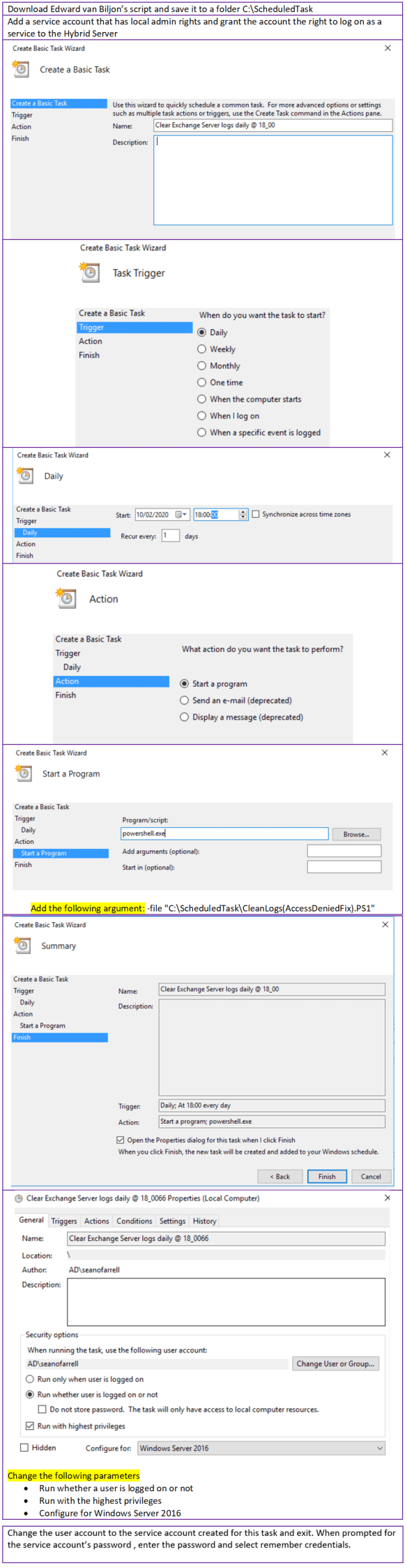
The Exchange Online Hybrid wizard licenses the new Exchange 2016 servers as part of the Hybrid configuration process , the Hybrid license does not permit the hosting of mailboxes. One of the problems with Exchange server since Exchange 2013 is log file growth. This post will demonstrate a scheduled task i always create on Hybrid servers.

The task schedules Edward van Biljon script available to download HERE

These log files are mostly IIS log files and not Exchange database log files as no mailboxes are hosted on the Hybrid server. But if an organisation is moving thousands of mailboxes to Exchange Online and not clearing down these logs, then they will run into issues. I have often reclaimed 20 -30GB of disk storage from running this script as a scheduled task.
Drawing1

The next section to consider is Exchange Database logs. Most vendors like

  • Commvault
  • Veeam
  • Veritas

perform an excellent backup service and are typically scheduled to run outside of business hours. Exchange backups are critical to truncate logs and become even more critical in an Exchange DAG. I have worked on previous projects that migrated Lotus Notes or Groupwise to Exchange and the log files grew too quick and could not wait till the daily evening backup. This issue can also arise in Exchange Hybrid native migrations due to the volume of traffic being migrated.

Most Exchange backup vendors communicate with VSS , It is critical that Exchange truncates the mailbox database logs , as there will be corruption in the databases’ if Exchange cannot perform this task.

If there is a scenario where the Exchange database and log volume is running out of space , Microsoft have an excellent utility called diskshadow which has been around for a long time. So essentially we trick Exchange into thinking a full backup has been performed and here are the simple steps if an Exchange Server database was installed on the system volume.

DiskShadow

This process should only be used in emergencies, Business as Usual backup schedules should normally ensure Exchange volumes do not run out of space but during migrations from an Exchange 2010 to Exchange Online or Lotus Notes to Exchange on-premise or online , the log files fill up really quick and even more so if there 3 or more databases that are members of a DAG

The final option for reclaiming space is offline de-fragmentation databases to claim white space. And only choose this option when all mailboxes have been migrated as it can take a long time and requires downtime.


Anonymous Relay when transitioning from 2010 to 2016

I recently worked on a project where my customer had a load balanced vip for SMTP. There were two Exchange 2010 cas-hub servers included in the vip. And the 2010 servers had a relay connector for anonymous access configured for applications like scan to email and HR applications. So how do we move this service to our lovely new Exchange 2016 servers.

  1. Create the fronted transport service relay connectors on both Exchange 2016 servers called ‘Relay’
  2. Then run this script to copy all of the relay ips to the new Exchange 2016 relay connectors
    Credit:https://gallery.technet.microsoft.com/office/Copy-a-receive-connector-b20b9bef
  3. Then on Exchange 2016 server 1 we run these commands
    Servers are contso1 & contoso2
    Set-ReceiveConnector “contso1\Relay” -PermissionGroups AnonymousUsers,Exchangeservers -DomainController FSMO DCGet-ReceiveConnector “contso1\Relay” | Add-ADPermission -User ‘NT AUTHORITY\Anonymous Logon’ -ExtendedRights MS-Exch-SMTP-Accept-Any-Recipient -DomainController FSMO DCSet-ReceiveConnector “contso2\Relay” -PermissionGroups AnonymousUsers,Exchangeservers -DomainController FSMO DCGet-ReceiveConnector “contso2\Relay” | Add-ADPermission -User ‘NT AUTHORITY\Anonymous Logon’ -ExtendedRights MS-Exch-SMTP-Accept-Any-Recipient -DomainController FSMO DC
  4. Add a server IP like the ad connect server into the relay connector scope on both contoso1 and contoso2
  5. Then run this command from the AD Connect server to each of the Contoso servers
    telnet SMTP VIP 25
    Helo
    mail from:sean@contoso.com
    rcpt to:sean.ofarrell@yahoooooo.com
    data
    Test from Sean.
  6. Once the email comes through we can then remove the Exchange 2010 server from the SMTP VIP and disable the relay connector on the Exchange 2010 servers.

Finally a lot of my customers do not trust Exchange Online Protection and use services like Mimecast , Proofpoint, Cisco Cloud Email Security and once the SPF records for the domains matches the service it can normally be much easier to set up smtp relay via these saas services.

AD Connect – Sync-rule-error-function-triggered

I recently worked on a project that had the following scope.

  • Migrate 6 Office365 tenants into a new single Office365 tenant
  • Migrate all users, sidhistory and computer accounts into a new AD Forest using Quest Migration Manager for Active Directory from 10 source Active Directory Forests to a new Windows Server 2019 Active Directory Forest.

14 user objects could not sync changes like adding aliases. If I extract the affected user’s immutable from the source office365 tenant it was different to the corresponding users immutableid in the new tenant.

So where is the problem? Why wont the changes sync?

When further analyzing the errors in AD Connect, I could see that the cloudanchor attribute in my new tenant had the same immutable ID as the source tenant.

So how do we fix this?

  1. Exclude the following two attributes from Quest Migration Manager for Active Directory migrations and synchronization tasks ‘mS-DS-ConsistencyGuid’ & ‘msDS-ExternalDirectoryObjectId’
  2. Then run this powershell command to export all destination  site immutable IDs

    get-aduser -filter * -SearchBase “OU=Contoso” | select samaccountname,mail,userprincipalname,objectguid,@{label=”ImmutableID”;expression={[System.Convert]::ToBase64String($_.objectguid.ToByteArray())}} | export-csv CSV LOCATION

  3. Then run the following command and replace the immutable id from the exported csv in step3 in the bold text below to convert the immuttableid to HEX format
    [system.convert]::FromBase64String(“rk4ZgeI/l0OpdRr5PiwU1g==“) | %{$a += [System.String]::Format(“{0:X}”, $_) + ” “};$result = $null;$result = $a.trimend();$result
  4. The output of this command will convert the immutable ID from the CSV to a Hex value like AE 4E 19 81 E2 3F 97 43 A9 75 1A F9 3E 2C 14 D6
  5. Next step is to populate the ‘mS-DS-ConsistencyGuid’ attribute with the hex value from step 4 and replicate domain controllers.
  6. Run a delta or initial sync on AD Connect and the issue will be resolved.

Reference Article: https://docs.microsoft.com/en-us/archive/blogs/latam/using-the-consistencyguid